



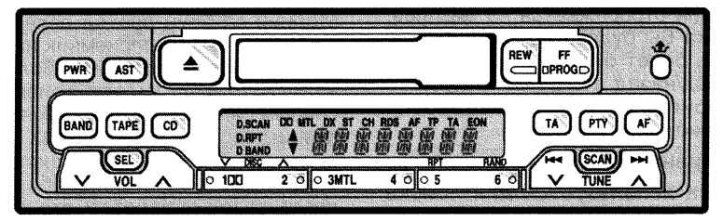
Preset buttons 1, 2, 3, 4, 5, 6
These buttons are used to preset and tune radio stations. To preset a radio station to a specific button, tune to the desired station (see TUNE). Press and hold the button until you hear a beep – this will mean that the station is set to the button. The button or cell number will appear on the display.
To tune to a preset station, press the desired station button. The button or cell number and the station frequency will appear on the display.
These systems can store one LW/MW station and three VHF stations under each button. (The display will show "LW" or "MW", "U1", "U2" or "U3" when you click the "BAND" button). The memory of pre-installed stations will be canceled if the power supply is interrupted (the battery will be disconnected or the fuse will blow).
Eject button

Press this button to eject the cassette.
|>| Higher/lower track number
Using this button, you can move to a higher/lower track number or quickly fast forward/backward the track you are listening to.
Move to a higher/lower track number – quickly press and release the button >>| (up) or |<< (down). The track number will appear on the display. If you hear a beep, it means you have held the button too long and the player will quickly scroll forward or backward through the track.
Fast forward/backward tracks - press and hold the button >>|(forward) or |<<(back) until you hear a beep. While you hold the button, the current playing time is shown on the display. As long as you hold the button, the player will quickly scroll forward/backward through the track. When you release the button, the player will resume playback.
AF (alternative frequencies)
This button is used to search for RDS stations (radio information system) across the entire frequency band.
Press "AF" for less than 2 seconds to receive the same program while tuning to an RDS station. "AF" will appear on the display. If the reception conditions become worse, the network that broadcasts the same program will be selected from the AF list (alternative frequencies) for RDS stations.
To change the AF mode, press the "AF" button for at least 2 seconds. When "REG ON" appears on the display, the radio will select the RDS station that has the same PI code (program identification). When "REG OFF" appears on the display, the radio selects the RDS station that has the same three-digit PI code (program identification).
If the radio cannot find an RDS station within 60 seconds, the radio mutes all programs and begins to search for an RDS station of the same PI code using the AF list. If the radio cannot find any station in one pass due to weak signals, it begins to search again using increased sensitivity to search for stations with weak signals. At this time, "DX" will appear on the display. A beep will sound and "PI SEEK" will appear on the display to indicate when this function begins to operate.
If the signal becomes extremely weak, the radio will pause searching for a station and the display will show "NOTHING" for 2 seconds. After that, if the radio cannot find an RDS station within 20 seconds, it will start searching again.
To cancel AF mode, press the "AF" button again.
AST (Automatic memorization)
This button is used to automatically preset the frequencies of 6 radio stations for each frequency band (DV/SV, VHF1, VHF2 and VHF3).
Press "AST" until you hear a beep. If the radio cannot find any station, it will tune to the frequency it was receiving before using the "AST" function.
BAND
Press "BAND" to switch between LW/MW and VHF frequency bands.
"LM", "MW", "U1", "U2" or "U3" will appear on the display. These systems allow you to set eighteen VHF stations at a rate of three on each button.
If the audio system is off, you can turn on the radio by pressing "BAND". You should also press "BAND" to switch from working with a cassette or CD to working with a radio.
CD (Compact disc)
Press "CD" to switch from radio or cassette operation to CD operation, you can turn on the CD player by pressing "CD".
When the audio system is set to CD operation, the display will show the track number currently playing.
DISC
By pressing this button you can select the disc you want to listen to.
Dolby NR
If you are using a tape recorded with Dolby noise reduction, press the button marked with a double-D symbol. The double-D symbol will appear on the display. Press the button again to turn off Dolby NR.
Dolby NR mode reduces tape noise by approximately 10 dB. For best sound reproduction, play tapes with this button on or off, depending on the mode used to record the tape.
The Dolby noise reduction system is manufactured under license from Dolby Laboratories Licensing Corporation. "DOLBY" and the double-D symbol are trademarks of Dolby Laboratories Licensing Corporation.
FF (Fast forward)
Press the "FF" button to fast forward the tape. To stop the tape during fast forward, lightly press the "REW" button.
When the tape has been rewound to the end, the cassette player will start playing the other side of the tape using the automatic reverse function.
MTL indication (Metal)
Press the "MTL" button when inserting the metal or chrome tape. The display will show "MTL".
PROG (Program)
Press both "PROG" buttons to select the other side of the tape. Auto-reverse function. After the cassette player reaches the end of one side of the tape, it automatically reverses direction and starts playing the other side. This happens regardless of whether the tape is being played or fast-forwarded.
RTY (program type)
Press the "PTY" button. If the button is pressed while receiving the "PTY" code, the RDS station, the current program type is "NEWS" (news), "SPORT" (sport), "TALK" (talk), "POP" (pop music), "Classics" appears on the display. If a different program type is desired, press PTY until the desired program type appears.
If the "TUNE ↑" or "TUNE ↓" button is pressed while the program type is displayed, the radio will search for a station that transmits the PTY code. If the radio cannot find any station, "NOTHING" will appear on the display.
If the system is left untouched for 6 seconds while the program type is displayed, or if another operation is performed, the program type indication disappears and the radio will transmit the program of the last displayed program type.
PWR (Power)
Press "PWR" to turn the audio system on and off.
RAND (Arbitrarily)
There are two random play functions. You can listen to all the tracks in random order on all the CDs in the store, or you can listen to only the tracks on a specific CD in random order.
Randomly play tracks on a disc - quickly press and release the button "RAND". "RAND" appears on the display, and the player will play all the tracks on the disc you are listening to in random order. If you hear a beep, it means you have held the button down too long, and the player will play all the tracks on all the discs in the store in random order. To turn off the random play function, press the "RAND" button again.
Random play of all tracks in the magazine – Press "RAND" until you hear a beep. "D*RAND" will appear on the display and the player will play all tracks from all discs in the magazine in random order. To turn off the random play function, press "RAND" again.
REW (Fast forward)
Press the "REW" button to fast-forward the tape. To stop the tape during fast-forward, lightly press the "FF" button. The tape will immediately start playing.
When the tape has been rewound to the end, the cassette player will stop and then begin playing the same side.
RDS display (radio information system)
The radio automatically switches to RDS mode to receive an RDS station when tuning into a FM broadcast. "RDS" and the RDS station name appear on the display.
RPT (Repeat): CD Player
There are two repeat play functions. You can repeat a track on a disc or a whole CD. Repeat a track - quickly press and release the "RPT" button until you hear a beep. "D*RPT" will appear on the display. The player will repeat all the tracks on the disc you are listening to.
When the disc finishes playing, the player will automatically skip to the beginning track of the disc and play it again. This process will continue until you press the button again to turn off this function.
SCAN
Radio
You can scan all frequencies of a band or only the frequencies of preset stations of a given band.
To scan the preset station frequencies, quickly press and release the "SCAN" button. If you hear a beep, you have held the button down too long and the radio will scan all frequencies in the band. The radio will tune to the next preset station up the band and play it for a few seconds, then move on to the next preset station. To select a station, press the "SCAN" button again.
CD player
There are two scanning functions. You can scan the tracks of a specific disc or the first tracks of all discs in the magazine.
Scanning disc tracks – quickly press and release the button "SCAN". "SCAN" appears on the display, and the player will scan all the tracks of the disc you are listening to. If you hear a beep, it means you have held the button down too long, and the player will scan the first tracks of the discs in the magazine. To select a track, press the "SCAN" button again. If the player has scanned all the tracks of the disc, it will stop scanning.
Scanning the first tracks of the discs in the magazine – press the "SCAN" button until you hear a beep. "D*SCAN" will appear on the display and the player will play the first track of the next disc for 10 seconds and then move on to scanning the next disc. To select a disc, press the "SCAN" button a second time. If the player has scanned all the discs, it will stop scanning.
SEL (Select) and VOL (Volume)
Volume control function
These buttons are used to adjust the volume. To adjust the volume, press "SEL" repeatedly until "VOL" appears on the display. Then press the "↑" (up) or "↓" (down) side of the "VOL" button. The display will show a range from "VOL 0" to "VOL 36".
Sound balance adjustment function
These buttons are used to adjust the sound balance between the right and left and front and rear speakers.
To adjust the right/left balance, press "SEL" repeatedly until "BAL" appears on the display. Then press the "↑" (up) or "↓" (down) side of the "VOL" button.
The display will show a range from "BAL L7" to "BAL R7".
To adjust the front/rear balance, press "SEL" repeatedly until "FAD" appears on the display. Then press the "↑" (up) or "↓" (down) side of the "VOL" button.
The display will show a range from "FAD F7" to "FAD R7".
Manual tone control function
These buttons are also used to manually adjust the tone.
To adjust the bass tone, press the "SEL" button repeatedly until "BAS" appears on the display. Then press the "↑" (up) or "↓" (down) side of the "VOL" button to adjust to your taste.
The display will show a range from "BAS –5" to "BAS +5".
To adjust the high tone, press the "SEL" button repeatedly until "TRE" appears on the display. Then press the "↑" (up) or "↓" (down) side of the "VOL" button to adjust to your taste.
The display will show a range from "TRE –5" to "TRE +5".
ST indication (Stereophonic reception)
The radio automatically switches to stereo reception when tuned to a stereo broadcast. "ST" appears on the display. If the signal becomes weak, the radio lowers the channel spacing to prevent the weak signal from creating noise. If the signal becomes extremely weak, the radio switches from stereo to monaural reception.
TA (Road news)
This button is used to receive TA stations across the entire frequency band.
"EON" System (additional extended network). If the station is RDS (with EON data), the station you are listening to does not broadcast traffic information programs in TA mode (road news), then the radio switches to the traffic information program automatically using the AF list for EON.
After the traffic information broadcast ends, the radio automatically returns to the original program. A buzzer sounds when this function starts and ends.
Press "TA" to switch the radio to TP mode. "TP" will appear on the display.
In TP mode, the radio starts searching for a TP station. When a TP station is received, the program service name will appear on the display. Also in AF mode, the radio searches for a TP station using the AF list.
If the radio cannot find any TP station, "NOTHING" appears on the display for 2 seconds and the search for the TP station starts again.
When a TR station is received, if the TR signal stops for 20 seconds, the radio will start searching for another TR station automatically.
Press "TA" again to switch the radio to TA mode. "TA TR" will appear on the display.
In TA mode, the radio starts searching for a TP station. It will sound only when a TP station is received. When a TP station is received, the program service name will appear on the display. Also in AF mode, the radio searches for a TP station using the AF list.
If the radio cannot find any TP station, "NOTHING" appears on the display for 2 seconds and the search for the TP station starts again.
When a TR station is received, if the TR signal stops for 20 seconds, the radio will start searching for another TR station automatically.
Volume memory function "TA" - remembers the volume when receiving traffic news.
When "TA" is received next time, the system compares the volume of the received "TA" station and the memorized volume of TA and automatically selects a higher volume. But the volume memorization range is limited: if the volume of the previously received program is higher than the maximum volume of the range, then the maximum volume of the range is memorized, and if it is lower than the minimum volume of the range, then the minimum volume of the range is memorized.
You can adjust the volume independently from the stored "TA" volume when receiving a "TA" station (see SEL and VOL).
To return to normal mode from TA mode, press "TA" again.
TAPE
Press "TAPE" to switch from the radio to the cassette player. If the audio system is off, you can turn on the cassette player by pressing "TAPE". In both cases, the cassette must already be inserted in the player.
TUNE
Setting
Your Toyota has an Electronic Tuning Radio (ETR). Press and release the "↑" (up) or "↓" (down) side of the "TUNE" button to change the station frequency up or down the frequency band. If you hear a beep, it means you have held the button down too long and the radio will enter search mode.
Search
In search mode, the radio finds and plays the next station up or down the frequency band. To search for a station, press and hold the "↑" or "↓" side of the "TUNE" button until you hear a beep. To find another station, repeat this procedure.